```html
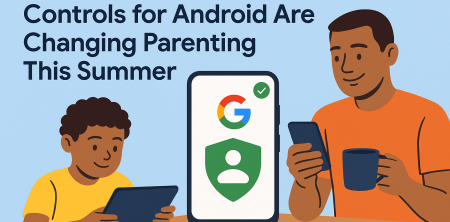
With summer break upon us, parents are faced with the challenge of managing their children's screen time. It’s no secret that kids often gravitate toward their devices during their time off from school. In response to this growing concern, Google has rolled out parental controls for Android across all devices, a feature that expands on capabilities first introduced on Pixel phones in late 2025. This major update is creating a buzz among parents, enabling them to monitor and regulate their children's digital habits easily.
Understanding the New Parental Control Features
Google's latest parental controls for Android come packed with features designed to help families navigate the complexities of digital parenting. The controls allow parents to:
- Set screen time limits
- Establish nighttime downtime
- Filter Google Play downloads
- Block specific apps
- Restrict usage time for certain applications
Each of these features is designed with an intuitive interface, making it easier for parents to implement them without a steep learning curve. For instance, parents can simply navigate to the settings on their child’s device to start customizing how and when their children use their phones or tablets.
Setting Limits: How to Establish Screen Time Rules
One of the most significant features parents can utilize is the ability to set screen time limits. This allows you to decide how long your child can spend on their device each day. You might consider a balanced approach—setting a reasonable limit that allows for both educational use and leisure time.
To get started, head to the parental control settings. Here, you’ll find options to establish daily limits for individual apps or overall device usage. You can also differentiate between weekdays and weekends, accommodating different routines during the school week and summer break.
Nighttime Downtime: Encouraging Healthy Sleep Habits
Establishing a nighttime downtime is critical for promoting healthy sleep habits among children. With this feature, parents can choose specific hours during which their child’s device will be locked, preventing late-night scrolling or gaming. Research indicates that excessive screen time before bed can lead to sleep disturbances, which can impact a child’s overall well-being.
To set up nighttime downtime, simply go into your parental controls and select the hours you deem appropriate. This is particularly useful during the summer, when children might be tempted to stay up late watching videos or playing games.
Filtering Google Play Downloads: Keeping Content Age-Appropriate
Another critical aspect of digital parenting is ensuring that your children are exposed to age-appropriate content. The new parental controls for Android allow you to filter Google Play downloads based on age ratings. This gives you the power to prevent your child from downloading apps or games that may not be suitable for their age group.
This feature is vital in a world where new apps emerge daily, and some may not always prioritize child safety. By taking advantage of the filtering option, you can feel more secure about what your child is accessing on their device.
Blocking Specific Apps: Tailoring Digital Experiences
Every family is different, and what works for one may not work for another. The ability to block specific apps enables you to tailor your child’s digital experience based on their individual needs and your family values. For example, if you know that a particular social media app has been causing your child stress or distraction, you can block it completely. (See: CDC Youth Risk Behavior Survey.)
This flexibility allows you to have meaningful conversations with your child about why certain apps may not be beneficial for them. It also empowers kids to understand that not all digital experiences are created equal. This builds on important mental health tips.
Security Measures: Keeping Changes Safe
To ensure that these parental controls are effective, Google has implemented a security feature requiring a PIN for all changes made to the settings. This step is crucial, especially if your child is savvy enough to navigate the settings on their own. By requiring a PIN, you can prevent unauthorized changes, giving you peace of mind that your controls remain intact.
Consider setting a unique PIN that your child won’t easily guess. Discuss with them the importance of these controls, so they understand the reason behind the restrictions.
The Timing: Why Now Is the Perfect Moment for Parental Controls
The timing of this release couldn’t be better, as parents are increasingly interested in managing screen time as summer break begins. According to Google Trends, interest in parental controls is surging, highlighting a growing concern among parents about their children's digital habits.
With children spending more time at home, the potential for excessive screen time rises. These tools provide parents with proactive measures to ensure their kids strike a balance between enjoying their devices and engaging in other summer activities like outdoor play and family time.
Real-Life Experiences: Parents Share Their Perspectives
While the features are certainly promising, real-life experiences from parents offer valuable insights into how these tools can impact families. Many parents are excited about the ability to engage in conversations with their children regarding screen time. As one parent shared, "Being able to set limits has led to more open discussions about our family’s screen time values. My kids understand that it’s not just about restricting their use; it’s about finding balance."
Another parent expressed their relief at being able to filter app downloads. "I was overwhelmed by the sheer number of games and apps my kids wanted to download. With the filtering option, I feel more secure knowing I can prevent them from accessing inappropriate content."
Engaging Children in the Conversation
Implementing parental controls for Android isn’t just about setting restrictions; it’s also an opportunity to engage your children in meaningful conversations about digital responsibility. Discussing why limits are in place can promote understanding and accountability. Consider involving them in the decision-making process, asking them what they think is a reasonable screen time limit or which apps they believe should be blocked.
By fostering open dialogue, you empower your children to become more aware of their digital habits and the implications of excessive screen time. This collaborative approach can lead to more responsible usage and a healthier relationship with technology over time.
Looking Ahead: The Future of Digital Parenting
As technology continues to evolve, so too will the tools available for parents. Google’s rollout of parental controls for Android is just one step in a broader trend toward more sophisticated digital parenting solutions. Parents can expect further enhancements in the future, possibly integrating AI-driven suggestions based on usage patterns and family preferences.
Ultimately, the goal of these controls isn't solely about restriction but fostering a healthier digital environment for children. It’s about striking a balance that allows for educational use while minimizing potential distractions that can impede growth and development. (See: New York Times article on children's screen time.)
Frequently Asked Questions (FAQ)
What are parental controls for Android?
Parental controls for Android are features and settings that allow parents to monitor and manage their children's device usage. These controls can help set limits on screen time, filter content, block specific apps, and establish guidelines for safe device usage.
How do I access parental controls on my Android device?
To access parental controls, go to the Settings app on your child’s Android device. Look for the "Digital Wellbeing & Parental Controls" option, where you can find various parental control settings. You may also need to set up a Family Link account to manage controls more effectively.
Can I set different screen time limits for weekdays and weekends?
Yes, Android parental controls allow you to set different screen time limits for weekdays and weekends. This feature helps accommodate varying routines and responsibilities, ensuring your child gets balanced usage throughout the week.
What age ratings can I filter for app downloads?
You can filter app downloads based on standard age ratings, which typically include categories like "Everyone," "Everyone 10+," "Teen," and "Mature." This allows you to keep your child safe from inappropriate content based on their age. critical screen time mistake offers useful background here.
Can my child bypass the parental controls?
While it’s possible for tech-savvy kids to attempt to bypass parental controls, the requirement for a PIN to make changes provides a safeguard. It's important to communicate openly with your child about these rules and why they exist to foster trust and understanding.
Are there any additional apps for parental controls on Android?
Yes, beyond the built-in features, there are several third-party apps available that provide extended parental control options. Apps like Norton Family, Net Nanny, and Qustodio offer comprehensive monitoring and filtering tools that can enhance your parental control strategy.
What should I do if I notice my child is still spending too much time on their device?
If you find that your child is still spending excessive time on their device despite having set controls, it may be time for a family meeting. Discuss the reasons behind their usage and explore activities or hobbies that could serve as alternatives. Reinforcing the importance of balance and encouraging outdoor play or family time can help shift their focus away from screens.
Statistics on Screen Time and Kids
Understanding the impact of screen time on children is crucial in effective digital parenting. Recent studies reveal alarming statistics about children's screen time:
- According to a report from the American Academy of Pediatrics, children aged 2 to 5 should have no more than one hour of high-quality programming each day.
- Research conducted by Common Sense Media found that kids aged 8 to 12 spend an average of 4 to 6 hours per day on screens, while teenagers average 7 to 9 hours.
- A study published in the Journal of the American Medical Association suggested that excessive screen time can be linked to issues such as obesity, sleep problems, and behavioral issues in children.
These statistics underline the importance of implementing effective parental controls and engaging in proactive discussions about screen time. As a parent, you can use this data to guide your decisions and create a more balanced approach to technology in your household.
Technology and Mental Health: Understanding the Impacts
The relationship between technology use and mental health has been a topic of increasing concern. Research indicates that excessive screen time can contribute to anxiety, depression, and other mental health issues among children. A study from the University of California found that teens who spend more than three hours a day on recreational screen time are at a higher risk of mental health problems.
Parents need to recognize these risks as they implement parental controls for Android. It’s essential to help children understand the importance of moderation and to encourage offline activities that promote well-being, such as sports, reading, and spending time with family and friends.
Incorporating Educational Content into Screen Time
While it's important to limit recreational screen time, parents can also use this opportunity to introduce educational content to their children's device usage. Numerous apps and platforms offer engaging learning experiences that can supplement traditional education. Apps like Khan Academy Kids, Duolingo, and ABCmouse provide interactive and educational content that can enrich your child's learning experience.
By incorporating educational apps into your child's screen time, you can help them develop valuable skills while still allowing for leisure activities. Setting boundaries, such as designating specific times for educational use, can also encourage a balanced approach to screen time.
Creating a Family Technology Agreement
One effective way to manage screen time and digital usage as a family is by creating a Family Technology Agreement. This agreement can outline the rules, expectations, and responsibilities regarding device use, including time limits, appropriate content, and offline activities. Involving your children in the creation of this document can promote ownership and accountability, leading to better adherence to the established guidelines.
By having a clear understanding of the family's expectations for technology use, parents and children can work together to foster a healthier relationship with screens, improving communication and reducing conflicts.
Best Practices for Using Parental Controls
Using parental controls effectively involves more than just setting limits; it’s about building a foundation of trust and understanding. Here are some best practices:
- Start Early: Introduce parental controls as soon as your child begins using a device. This sets a precedent for responsible use.
- Regular Check-ins: Have frequent conversations about digital habits and the reasons behind the controls. This reinforces their importance.
- Encourage Independence: As your child grows, gradually give them more control over their device. This can help them learn to self-regulate.
- Model Good Behavior: Set an example by demonstrating healthy screen time habits yourself. Kids often mimic their parents.
- Stay Informed: Keep up with new apps and trends that your children might be interested in. This knowledge helps you guide them effectively.
Conclusion: Empowering Parents in the Digital Age
With summer break here and children spending more time on their devices, Google’s parental controls for Android provide parents with much-needed resources to manage screen time effectively. These tools empower families to set limits, filter content, and encourage open dialogue about digital responsibility. By integrating these features into family routines, parents can cultivate a healthier relationship with technology, ensuring that children can enjoy the benefits of digital devices while also engaging in enriching summer activities. Taking an active role in your child’s digital life is more crucial now than ever, and with these new tools, you’re better equipped to do just that.
```
Trending Now
Frequently Asked Questions
What are the new parental controls for Android?
Google's new parental controls for Android allow parents to set screen time limits, establish nighttime downtime, filter Google Play downloads, block specific apps, and restrict usage time for certain applications. These features aim to help parents manage their children's digital habits more effectively.
How can I set screen time limits on my child's Android device?
To set screen time limits, navigate to the parental control settings on your child's Android device. Here, you can establish daily limits for individual apps or overall device usage, and even differentiate between weekdays and weekends to suit your family's routine.
What is nighttime downtime in Android parental controls?
Nighttime downtime is a feature that allows parents to restrict device usage during certain hours, promoting healthier sleep habits for children. By setting this limit, parents can ensure that their kids aren't using their devices late at night.
Can I block specific apps with Google parental controls?
Yes, Google's parental controls for Android enable parents to block specific apps on their child's device. This feature helps ensure that children are not accessing content that may be inappropriate or distracting.
Are the new parental control features easy to use?
Yes, the new parental control features on Android are designed with an intuitive interface, making it easy for parents to implement settings without a steep learning curve. Parents can quickly navigate to the settings and customize their child's device usage.
Agree or disagree? Drop a comment and tell us what you think.

